Start / Products / Cameras / Allround M24

Allround M24
from: $ 798,00 * (net)
Product Flyer Manual Software Manual Price list
More Camera For Less. Guaranteed!

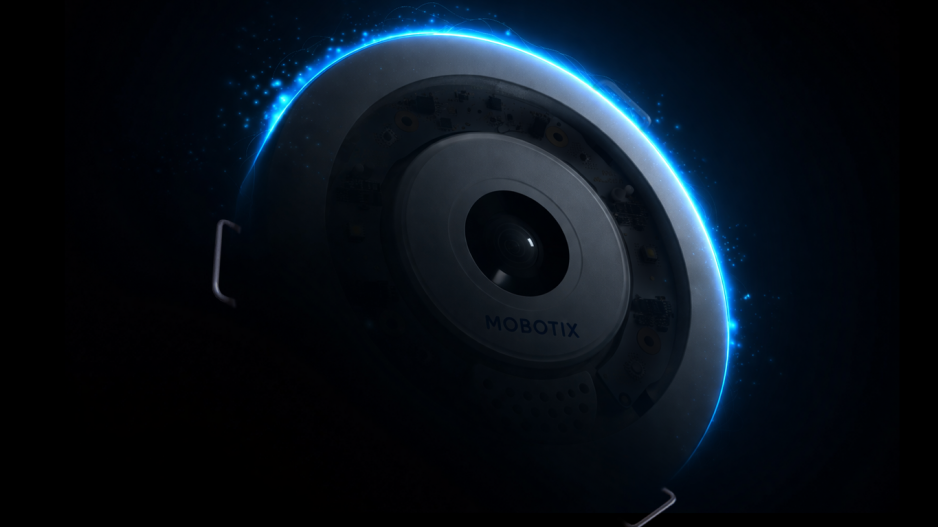
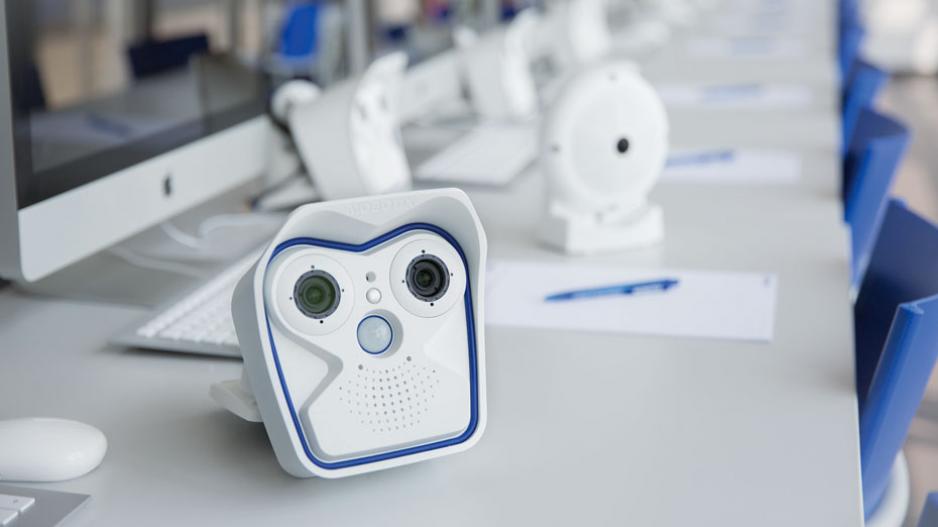
The professional and low-cost exchangeable-lens camera is suitable for indoor and outdoor use. Internal, digital video recorder with up to 32 GB of storage capacity and HiRes recording up to 3.1 megapixels. Over 30 times more detail than CIF!

MOBOTIX HiRes video replaces up to 6 cameras …

  • Individual choice of lens: tele/wide-angle, day/night, CS-Mount and Hemispheric (180°)
  • Perfect for video security and as 180° panoramic webcam
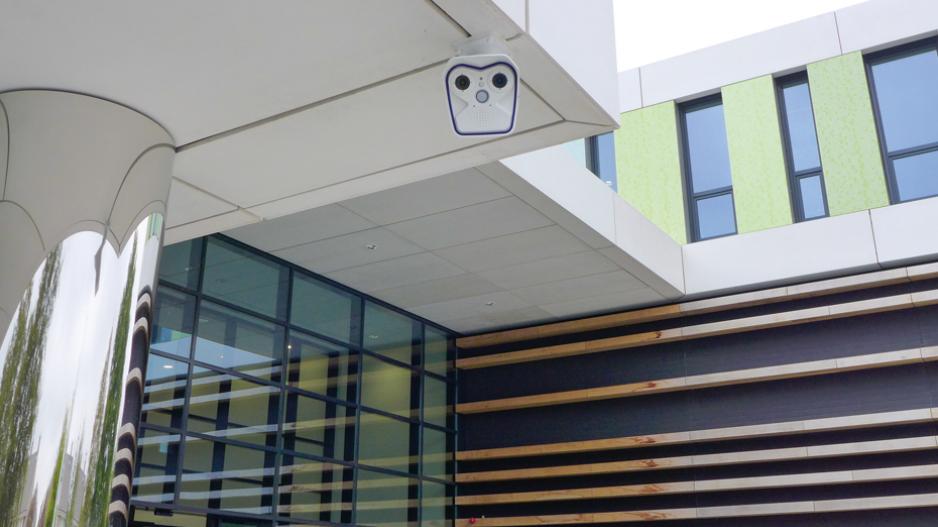
  • Fast, simple installation on wall, mast or ceiling
  • Integrated DVR with HiRes video recording without network load
  • Robust, low-maintenance and weatherproof from -30° to +60°C (-22° to +140°F), (IP66)
  • Digital continuous zoom, pan and tilt
  • Microphone and speaker with improved audio quality

* 2008/06 • MSRP (Manufacturer's suggested retail prices) • Prices ex works Langmeil, Germany (EXW) • Excluding VAT and any other handling charges • Information subject to change without notice!

Mounting Options

Mounting To A Wall

The M24M can be mounted to the wall of a building or structures, even mobile surfaces, for both indoor and outdoor use. The camera is mounted using the pre-installed VarioFlex mount (supplied as standard) , which is easily secured using the four enclosed screws and screw anchors (depending on the surface, it can also be mounted without screw anchors directly over the flush-mounted socket). The Ethernet connection cable of the camera has already been guided through the mount and simply needs to be connected with the network cable. By adjusting the VarioFlex mount as required, the captured image area can be precisely adjusted to the desired practical application. The camera can be turned or tilted 180° horizontally and 110° vertically (from -90° to +20°).

Mounting To A Ceiling

By exchanging the wall mount for the separately supplied ceiling mount, the M24M is ready to be mounted to ceilings in just a few easy steps thanks to the VarioFlex system. This mounting option is of particular benefit when monitoring rectangular rooms with a single camera. In such cases, the Super Wide Angle lens (90°, L22) allows the room to be monitored almost entirely by an M24M mounted to the ceiling in one of the corners. Using the PTZ software, you can easily zoom in on image details in either the live image or the recording. The camera can be turned or tilted 360° horizontally and 110° vertically (from -90° to +20°).

Dimensions

Dimensions (in mm) For Wall Installation

Dimensions (in mm) For Ceiling Installation

Dimensions (in mm) Of Wall Mount

Drilling Template (in mm) Wall And Ceiling Mount

Note

Find the folded drilling template at the end of the manual.

Make sure that the drilling template is not scaled or adjusted to the paper size when printing the PDF file (enlarged or reduced).

Mounting Instructions

Mounting The Camera Using The VarioFlex Wall Mount

Using the VarioFlex Wall Mount, the camera can be precisely panned, both horizontally and vertically to suit the area that is to be monitored.

When mounted to a wall, the camera can be turned or tilted as follows:

  • horizontally: 180°
  • vertically: 110°

In order to ensure a flush finish with the surface, connect the camera patch cable to the network cable using a standard adapter that is protected in the wall mount or install a flush-mounted socket with RJ45 connector. When doing so, make sure that the flush-mounted socket is placed as high up in the wall mount housing as possible.

When installing on-wall cabling, breaking out one of the four possible openings in the base of the wall mount will ensure that the cables can be fed neatly into the camera. Caution: If using the camera outdoors, only use the opening at the bottom of the mount for guiding the cables through. The connection to the camera patch cable can be established using a suitable adapter within the wall mount.

When mounted to a ceiling, the camera can be turned or tilted as follows:

  • horizontally: 360°
  • vertically: 110°

In addition, a cavity or flush-mounted socket can be installed for the network cable protruding from the ceiling, which allows sufficient space to connect the network cable with the camera patch cable using a standard adapter.

When installing on-wall cabling, breaking out one of the four provided openings in the base of the ceiling mount will ensure that the cables can be fed neatly into the camera. The camera patch cable must be connected to the network cable using a suitably sealed adapter.

Mounting The Camera With Pole Mount

If you are intending to mount the camera on a pole, you should consider using the MOBOTIX M24M Pole Mount. This mount is made of 3 mm powder-coated stainless steel (white) and has been designed specifically for outdoor use. The supplied stainless steel straps allow the mount to be attached to poles with diameters between 60 mm and 180 mm (2.4 in to 7.1 in). By design, the pole mount does not allow the use of a flush-mounted wall outlet.

The camera is always installed together with the VarioFlex mount, which has been prepared at the factory for wall mounting and therefore can also be secured directly to the pole mount. The best camera position for the selected lens must be found before mounting the camera (see Sections 1.2 and 1.5 of the manual ). Once the camera has been mounted to the wall, you can fine-tune its position.

Using the pre-installed VarioFlex Wall Mount, which is secured to the pole mount simply using four screws and nuts, the camera can be precisely panned, both horizontally and vertically, to suit the area that is to be monitored.

When mounted to a pole, the camera can be turned or tilted as follows, just like wall installation:

  • horizontally: 180°
  • vertically: 110°

Pole Mount Dimensions

Adjusting The Camera And Changing The Lens

Adjusting The Camera

  1. Establish a connection to the camera as described in Section 3.2 of the manual "First Images And The Most Important Settings". The live image from the camera should be visible on the computer monitor.
  2. Loosen the screws on the VarioFlex mount using the supplied Allen wrench so that you can easily turn and tilt the camera.
  3. Display the desired camera section on the computer monitor, then turn and tilt the camera until you have found the best position and sharpness. Retighten the screws of the VarioFlex mount to prevent the position of the camera from changing.
  4. If required, clean the lens cover using a clean, lint-free cotton cloth.

Correcting The Image Horizon (For L11 Lens Only)

The M24M-Sec with hemispheric L11 lens allows the correction of an uneven image horizon via OnScreen Control that was possibly caused by the installation position. The image horizon is turned by up to 30 degrees clockwise or counterclockwise and can be optically restraightened by clicking on the icons (see image).

Changing The Lens

The M24M can be shipped from the factory with five MOBOTIX standard lenses (L22, 32, 43, 65, 135) with the CSVario lens or the hemispheric L11 lens. This procedure applies equally for all lenses. However, the removal/installation of the lock ring is not required for the M24M-Sec-CSVario nor for lenses with CS or C mounts.

Only lenses with CS or C mounts may be used with the CSVario version of the M24M (Secure model only). Only standard MOBOTIX lenses (L22, 32, 43, 65, 135) with M14 thread may be used with standard versions of the M24M (Secure, IT and Basic). With the M24M 180° hemispheric camera, only the hemispheric L11 lens may be used. Upgrading to other model versions is not possible.

Proceed as follows to change the lens:

1.

Remove the lens cover by turning it counterclockwise. ab.

2.

Loosen the lock ring of the lens by turning it counterclockwise.

3.

Remove the lens with the lock ring by turning it counterclockwise.

4.

Unscrew the lock ring from the lens you just removed and screw it onto the new lens.

5.

Screw the new lens with the attached lock ring back into the camera.

6.

Adjust the image sharpness according to the camera's live image on the computer monitor. To avoid damaging the lens mount, never turn the lens too far or with force.

7.

Tighten the lock ring by turning it in a clockwise direction to secure the lens.

8.

Screw the lens cover onto the lens again and clean it, if required, using a clean, lint-free cotton cloth.

The focusing aid provides a visual aid when setting the image sharpness of a MOBOTIX camera lens (see Section 4.3.3 Image and Audio Settings, Quick Controls in the software manual ).

Replacing The MicroSD Card

The camera must be taken down to remove, insert or replace a MicroSD card. To avoid data loss, be sure to deactivate MicroSD card recording in the camera software and reboot the MOBOTIX camera before removing the card.

Caution

A MicroSD card may only be removed from the camera after you have deactivated Recording to SD Card and rebooted the camera. Failing to do so may lead to data loss! Make sure that the card is not write-protected!

Removing The MicroSD Card

1.

Deactivate recording: Recording to MicroSD card must be deactivated (Admin Menu > Storage on External File Server / Flash Device). If MicroSD card recording is still active, deactivate recording and reboot the camera. Section 3.6 "Micro SD Card Recording" in the manual contains more information on this topic.

2.

Remove camera from the weatherproof housing: Remove the two lock screws from the weatherproof housing and then remove the camera from the housing. In doing so, do not pull too hard on the lens cover. If required, use the long side of the 5 mm Allen wrench to carefully push the camera out of the housing from behind through the screw holes.

3.

Remove the connection cables: The connected cables (patch cable, Mini USB, MxBus) must be removed from the camera first by rotating and opening the bayonet catch (see end of Section 2.2.2 in the manual ).

4.

Remove the back of the camera and take out the MicroSD card: Remove the four screws from the back plate using the supplied 2.5 mm Allen wrench and carefully lift off the back plate. Gently push on the MicroSD card in the card slot of the camera. The card will be released from the slot and can then be removed from the camera.

Inserting The MicroSD Card

1.

Insert the MicroSD card: Push the MicroSD card into the card slot as shown, until an audible and perceptible click indicates it is in place.

2.

Mount the back plate: Replace the back plate of the camera housing, ensuring that the back plate screw holes are correctly positioned above the thread inserts.

3.

Screw the back plate tight and replace the connection cables: Place the four Allen screws back into the back plate and tighten the screws using the supplied 2.5 mm Allen wrench. The previously removed patch cable must now be reconnected (see end of Section 2.2.2 in the manual ).

4.

Tighten the back plate: Re-attach the camera to the weatherproof housing using the two lock screws. Make sure that none of the cables are damaged in the process.

5.

Activate recording: If you have inserted a MicroSD card that has already been MxFFS formatted, you can activate recording under Admin Menu > Storage on External File Server / Flash Device. Once the camera has been rebooted, it automatically activates recording.

6.

If you have inserted a new MicroSD card, it must first be formatted as described in Section 3.6 "MicroSD Card Recording" in the manual .

Mounting Tips For The M24M With L11 Lens (180° Fisheye)

The camera must be correctly positioned on the wall or ceiling in order to be able to use the high-resolution hemispheric image display option of the M24M with L11 lens. The entire hemisphere of the room in front of the camera is then effectively monitored.

High-Resolution Panorama Images

The M24M with L11 lens is primarily suited to providing an excellent overview in the form of a high-resolution panorama image , and less suitable for more exact details. For active operation, the camera should be mounted at an (out of direct reach) height ranging from 2.50 m to 3.50 m. People, for example, may be identified very well at distances of up to 1.50 m, and with sufficient detail at up to 3 m. Objects can be recognized even at distances of 5 m and more from the camera. During installation, ensure that the camera is focused on the most important areas of the room as directly as possible, in order to optimize image quality and to provide the desired level of detail recognition. This applies above all to wall and ceiling installations that must be carried out at greater heights for technical or other reasons (over doors, windows, etc.). Only by tilting the camera appropriately can the lens capabilities be fully utilized.

Allround View

Thanks to its hemispheric lens, a single M24M can monitor an entire room right into each of the four corners (360° Allround View). The camera's ideal position is on the ceiling in the center of the room at an angle of 90°. Due to its inherent physical and optical properties, the precision of the lens decreases as the distance from the lens grows. This means that the maximum usable image area greatly varies with the purpose of the camera. Rooms with a square floor area of up to approx. 40 m² (48 yd²) in general allow details to be identified even at the borders of the full image. If you would only like to know if persons enter a room or for monitoring specific objects, rooms with up to 100 m² (120 yd²) floor area can be monitored using a single M24M.
Furthermore, the "camera view from top to bottom" can also be achieved by mounting the camera to a wall or a pole at a tilt of 90°.

The image quality (precision) diminishes as the distance of an object to the camera focus point increases: 1 - very good, 2 - good, 3 - satisfactory

Allround View In Rectangular Rooms

When viewing a 360° allround image in the browser, you will notice that at the top and the bottom of the image edge, small part of the image information has been cut off. This is not a fault of the camera, but an intended behavior that aims at achieving the best possible utilization of the image sensor by the camera software. Bearing this in mind, it is advisable to install the M24M in rectangular rooms so that the camera lens is first directed towards the center of the two longer walls and then vertically tilted towards the ground.

Connecting The Camera

Manual And Automatic Operation

MOBOTIX cameras do not require any extra software. Thus, you can set up and operate the MOBOTIX camera using a JavaScript-enabled browser on all common operating systems (such as Windows, Linux, Macintosh, etc.). As an alternative, you can also use the MOBOTIX applications MxControlCenter and MxEasy. Follow these steps to set up the camera:

  1. Connect the camera to the network. Power is supplied directly via the network cable (see Section 2.9 of the manual ).
  2. Set up the camera's network parameters:
    - Manually using a Web browser
    - Automatically using MxControlCenter/MxEasy or via DHCP
  3. Configure the camera using the browser-based user interface, with MxControlCenter or with MxEasy.

Every MOBOTIX camera comes preconfigured with a fixed IP address in the 10.x.x.x range (for example, 10.8.0.99). However, local computer networks usually have IP addresses in the 172 or 192 ranges. In order to access a MOBOTIX camera via the network, the camera needs to obtain an IP address in the same address range. You can set up the network parameters of the MOBOTIX camera using one of the following methods: Manually, using MxCC and MxEasy or by DHCP .

Notes On Cable Lengths And Power Supply

  • Power may only be supplied to the camera via its Ethernet connector. A MOBOTIX PoE adapter or similar high-quality PoE product is recommended to provide the power supply via the network cable.
    • one camera : with the PoE adapter (MX-NPA-PoE)
    • multiple cameras : with PoE products conforming to IEEE 802.3af (PoE switch)
  • The maximum length of the network cable for power supply over an Ethernet cable is 100 m .
  • Make sure that you only use switches or routers that support the 10/100 Mbps Ethernet interface of the camera. Check for LED activity on the corresponding port of the switch or router. When deploying several cameras, read the notes in Section 4.11 "Operating Multiple Cameras" in the software manual .
  • It is highly recommend to use uninterruptible power supplies (UPS) to provide backup power.
  • If you are using IEEE 802.3af Power over Ethernet network components to supply power to MOBOTIX cameras, make sure, if possible, that these components do not have a fan. Since the power consumption of MOBOTIX cameras is very low compared to other products, the reliability of the entire system is increased, thus extending the life of these components.
  • For the M24M, you should use the new blue MX-NPA-PoE-Set - previous MOBOTIX network power acces-sories such as the NPA Set, Power Box and Power Rack (MX-NPA-Set, MX-NPR-4 and MX-NPR8/20) are not suitable for use with the M24M.

PoE Variables

PoE power level classes (IEEE 802.3af standard):

Class

Max. Power Consumption

Possible Operating Modes

1

0.44 W - 3.84 W

Normal operation without audio output and without USB devices

2

3.84 W - 6.49 W
(Werkseinstellung)

Normal operation with audio output and with USB devices

3

6.49 W - 12.95 W

Like class 2 and also with MxBus devices

The MOBOTIX factory default is PoE class 2. This default is usually fine and nothing needs to be changed. However, if the lower power level class 1 is sufficient for your application, it may – due to possible internal power distribution schemes amongst the ports of the PoE switch in use – be advantageous to change the PoE power level class in the browser:

  1. Select Admin Menu > Network Setup > Ethernet interface (for experts).
  2. Under power supply click change .
  3. A Power Wizard will appear to guide you through the PoE configuration steps.
  4. The camera will then need to be restarted via a hard reboot: Disconnect the camera from the power supply, then reconnect it, for example, by disconnecting and then reconnecting the network cable at the PoE switch.

Power Supply Using A Switch

  1. Connect the factory pre-installed cable of the camera to the Camera connector of the PoE adapter.
  2. Connect the LAN/Power connector of the PoE adapter to the Ethernet connector of the switch/router or the Ethernet socket.
  3. Plug the RJ45 connector of the power supply unit into the PC/Power connector of the PoE adapter.


IP addresses in the diagram are shown only as an example

Power Supply When Connected Directly To A Computer

  1. Connect the factory pre-installed cable of the camera to the Camera connector of the PoE adapter.
  2. Connect the PC/Power connector of the PoE adapter to the Ethernet port of the computer.
  3. Plug the RJ45 connector of the power supply unit into the LAN/Power connector of the PoE adapter.


IP addresses in the diagram are shown only as an example

Power Supply (PoE IEEE 802.3af) Using Power Over Ethernet Products

Connect the factory pre-installed cable of the camera to the Ethernet connector of the PoE switch/router. The switch/router must support the PoE standard IEEE 802.3af.

IP addresses in the diagram are shown only as an example